Your Tutopiya subscription is built to flex with your life — heavier before mocks, lighter during holidays, or paused when you travel. This guide shows how to manage your subscription confidently, without losing the tutor relationship you have built.
Subscription settings let you adjust your plan, add lessons, pause renewal, or review billing. There is no cancellation fee and no long-term lock-in — your subscription should support your goals, not restrict them.
How to open subscription settings
- Log in at tutopiya.com/learning-portal/login
- Open your profile / account menu from the learning portal
- In the left sidebar, go to Payment History (or Your Subscription)
- Click the dark blue Manage Subscriptions button at the top right
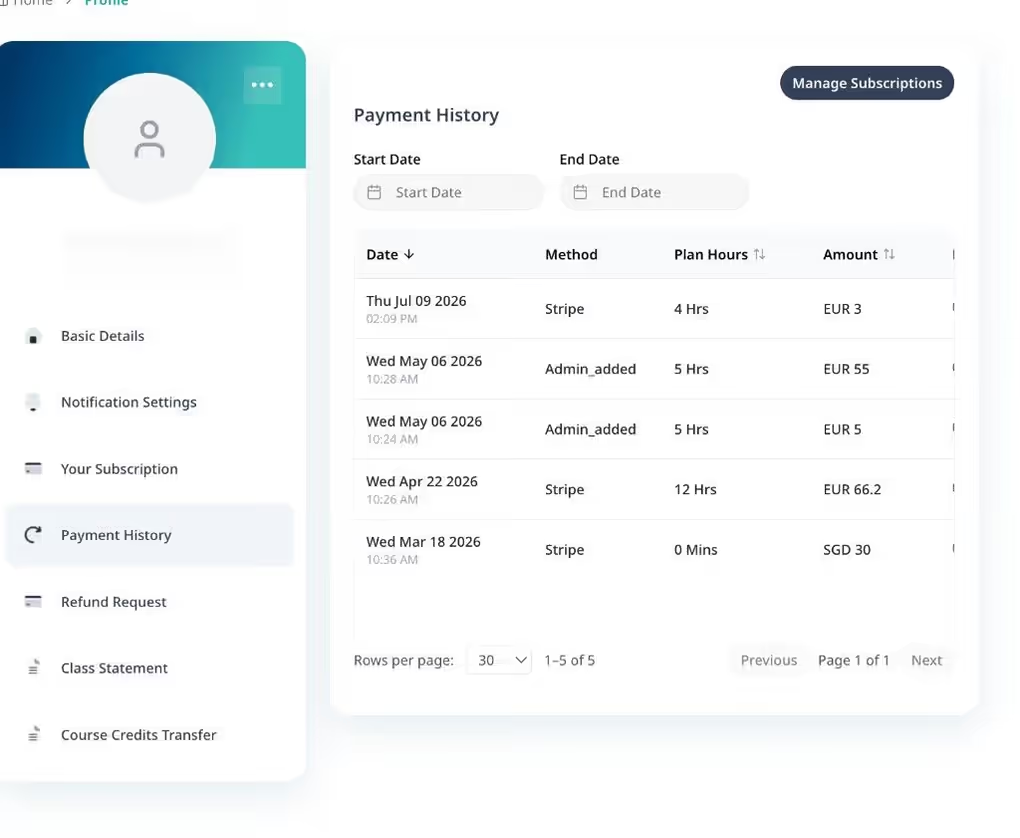
Payment History: Open this section from the account sidebar, then click Manage Subscriptions to pause, cancel, or update billing for your subscription
Upsize or downsize your lesson plan
You can upsize or downsize your subscription as your study load changes — including moving between monthly, quarterly, bi-annual, and annual billing where available. Upsizing before exam season means more contact time when it matters most. Downsizes typically apply from your next renewal date, so you keep the plan you have already paid for in the current cycle.
- Upsize — More lessons and/or a longer billing cycle; timing of the charge is shown before you confirm
- Downsize — Fewer lessons from the next billing cycle; helps if your schedule lightens without cancelling entirely
Add extra lessons to your subscription
Need more classes before renewal? You can usually purchase additional lessons without changing your core subscription plan — ideal for mock exams, coursework deadlines, or intensive revision weeks. Extra lessons are a positive way to accelerate progress while keeping your regular subscription in place.
Pause your subscription renewal
Travelling or taking a school break? Pausing delays your next subscription renewal so you are not charged while you are away. You can often still use lessons already on your balance during a pause — check your account for the exact rules on your plan.
Where to pause: this is done under Payment History → Manage Subscriptions.
- Go to Payment History in the account sidebar
- Click Manage Subscriptions
- In the Manage subscription window, under your current plan (for example Tutopiya Pass), click Pause subscription
- Confirm the pause when prompted — your next billing date will be delayed accordingly
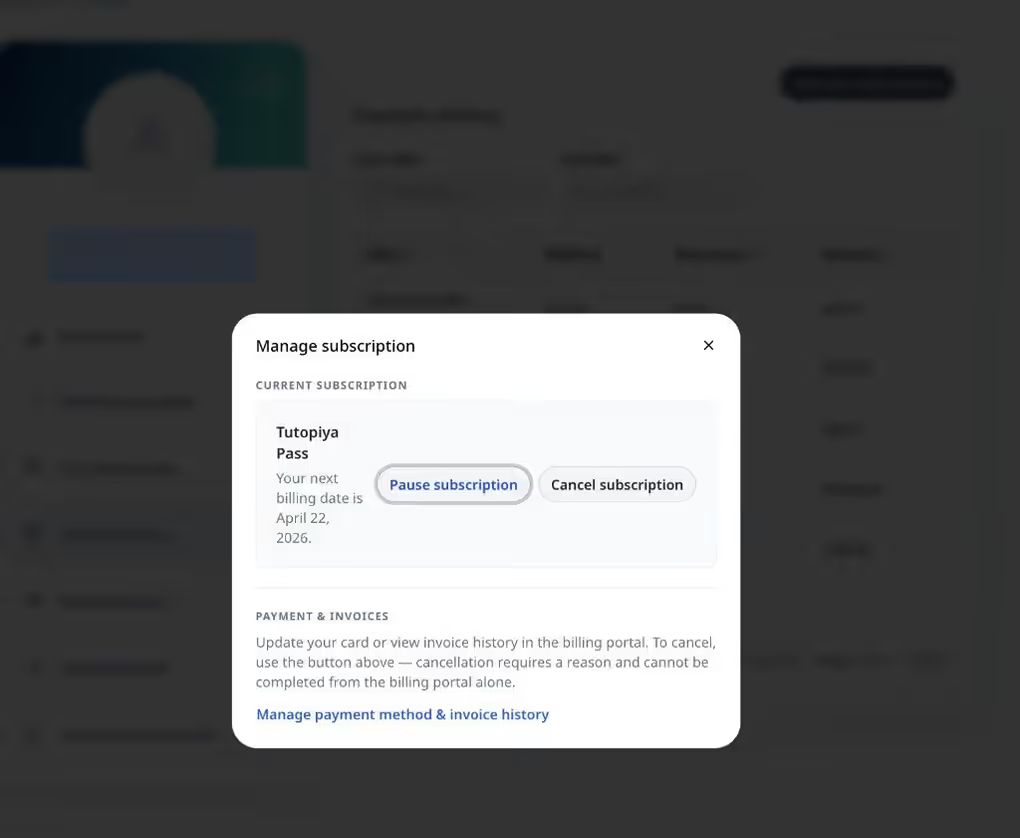
Manage subscription: Under Current subscription, choose Pause subscription to delay renewal — or Cancel subscription if you want to stop auto-renewal
From the same window you can also open Manage payment method & invoice history to update your card or view invoices. Cancellation requires a reason and is completed from this Manage subscription flow (not from the billing portal alone).
Update payment details
Keep your subscription running smoothly by updating your card before it expires. See subscription payments & billing for full payment guidance.
Switch or add a tutor
Your subscription is linked to a tutor and subject. If you need a different specialist — for example, adding Physics alongside Maths — contact support or use in-portal options to discuss a second subscription or transfer. We will help you move without losing paid lesson value where possible.
Subscription management checklist
| Goal | What to do |
|---|---|
| More lessons this month | Add extra lessons or upgrade your subscription plan |
| Fewer lessons long term | Downgrade plan for next renewal |
| Break from billing | Payment History → Manage Subscriptions → Pause subscription |
| Stop auto-renewal | Payment History → Manage Subscriptions → Cancel subscription (or see cancel guide) |
| Payment failed | Manage Subscriptions → Manage payment method & invoice history |
Frequently asked questions
Can I manage my subscription from the mobile app?
Most subscription actions are available in the learning portal on any device browser. If an option is web-only, open tutopiya.com in your browser while logged in.
Will changing my subscription affect booked classes?
Classes you have already scheduled usually stay in place. Plan changes affect future renewals and lesson balances — review the confirmation screen before you confirm.